> ## Documentation Index
> Fetch the complete documentation index at: https://docs.cashcowapps.com/llms.txt
> Use this file to discover all available pages before exploring further.
# Creating Bundles
> Build volume discounts and BOGO deals in minutes
## Quick Setup
Click **Create Bundle** in dashboard
Choose type, add products, set discounts
Pick colors and customize appearance
Publish to make live on your site
***
## Volume Bundles
**Reward customers with increasing discounts for buying more.** Perfect for consumables, supplements, clothing, and products customers buy repeatedly.
 ### How Volume Bundles Work
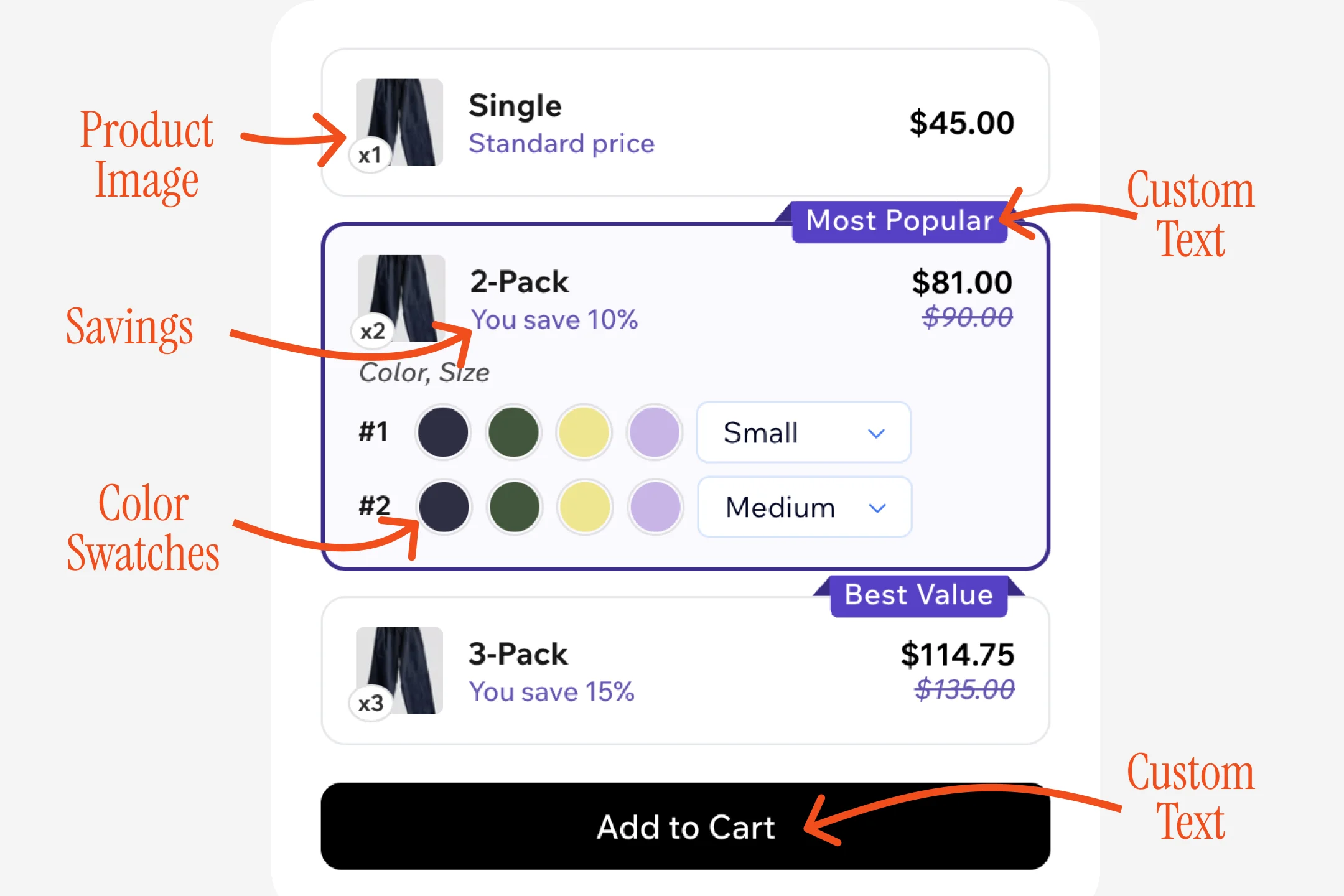
**Product Image** — Shows what customers are buying (automatically pulled from your Wix store)
**Tier Options** — Multiple quantity tiers with progressive savings:
* **Single:** Regular price baseline
* **2-Pack:** 10% discount (badge: "Most Popular")
* **3-Pack:** 15% discount (badge: "Best Value")
**Custom Text & Badges** — Guide customer decisions with promotional badges on your best offers
**Savings Display** — "You save 10%" clearly shows the discount amount
**Price Comparison** — Discounted price + strikethrough original price
**Color Swatches** — Variant selection when products have multiple options (colors, sizes)
**CTA Button** — "Add to Cart" button with customizable text and colors
**Use cases:**
* Bulk purchases (protein powder, supplements)
* Multi-packs (t-shirts, socks)
* Wholesale pricing
* Family/household quantities
***
## BOGO Bundles
**Offer free items when customers purchase a certain quantity.** Perfect for promotions, clearance sales, new product launches, and gift-with-purchase offers.
### How Volume Bundles Work
**Product Image** — Shows what customers are buying (automatically pulled from your Wix store)
**Tier Options** — Multiple quantity tiers with progressive savings:
* **Single:** Regular price baseline
* **2-Pack:** 10% discount (badge: "Most Popular")
* **3-Pack:** 15% discount (badge: "Best Value")
**Custom Text & Badges** — Guide customer decisions with promotional badges on your best offers
**Savings Display** — "You save 10%" clearly shows the discount amount
**Price Comparison** — Discounted price + strikethrough original price
**Color Swatches** — Variant selection when products have multiple options (colors, sizes)
**CTA Button** — "Add to Cart" button with customizable text and colors
**Use cases:**
* Bulk purchases (protein powder, supplements)
* Multi-packs (t-shirts, socks)
* Wholesale pricing
* Family/household quantities
***
## BOGO Bundles
**Offer free items when customers purchase a certain quantity.** Perfect for promotions, clearance sales, new product launches, and gift-with-purchase offers.
 ### How BOGO Bundles Work
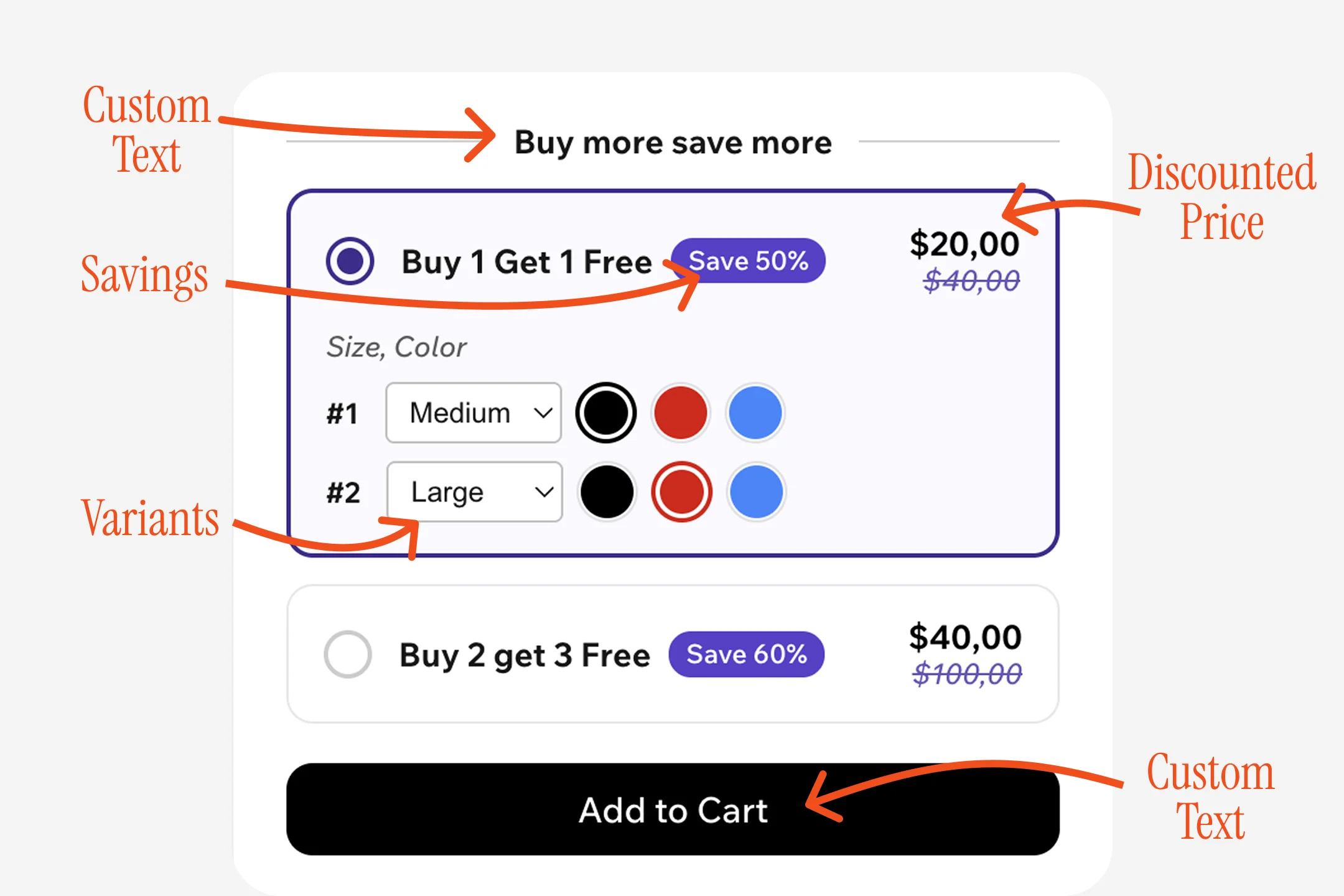
**Custom Text Header** — "Buy more save more" or any text that matches your brand
**Tier Selection** — Radio buttons let customers choose their deal:
* **Buy 1 Get 1 Free:** 50% savings
* **Buy 2 Get 3 Free:** 60% savings
**Savings Badge** — Auto-calculated percentage (Save 50%, Save 60%)
**Variant Selection** — Size/color pickers for each item in the bundle
* **Per-item mode:** Different variants for #1 and #2 (shown in image)
* **Single mode:** Same variant for all items
* **Hidden mode:** No selection needed
**Discounted Price** — Shows new total price with strikethrough original
**CTA Button** — "Add to Cart" button adds all items (paid + free) to cart automatically
**Use cases:**
* Promotions (Buy 2 Get 1 Free)
* Inventory clearance
* New product launches
* Gift-with-purchase campaigns
* Holiday sales
***
## Bundle Editor
### How BOGO Bundles Work
**Custom Text Header** — "Buy more save more" or any text that matches your brand
**Tier Selection** — Radio buttons let customers choose their deal:
* **Buy 1 Get 1 Free:** 50% savings
* **Buy 2 Get 3 Free:** 60% savings
**Savings Badge** — Auto-calculated percentage (Save 50%, Save 60%)
**Variant Selection** — Size/color pickers for each item in the bundle
* **Per-item mode:** Different variants for #1 and #2 (shown in image)
* **Single mode:** Same variant for all items
* **Hidden mode:** No selection needed
**Discounted Price** — Shows new total price with strikethrough original
**CTA Button** — "Add to Cart" button adds all items (paid + free) to cart automatically
**Use cases:**
* Promotions (Buy 2 Get 1 Free)
* Inventory clearance
* New product launches
* Gift-with-purchase campaigns
* Holiday sales
***
## Bundle Editor
 ***
## Configuration Guide
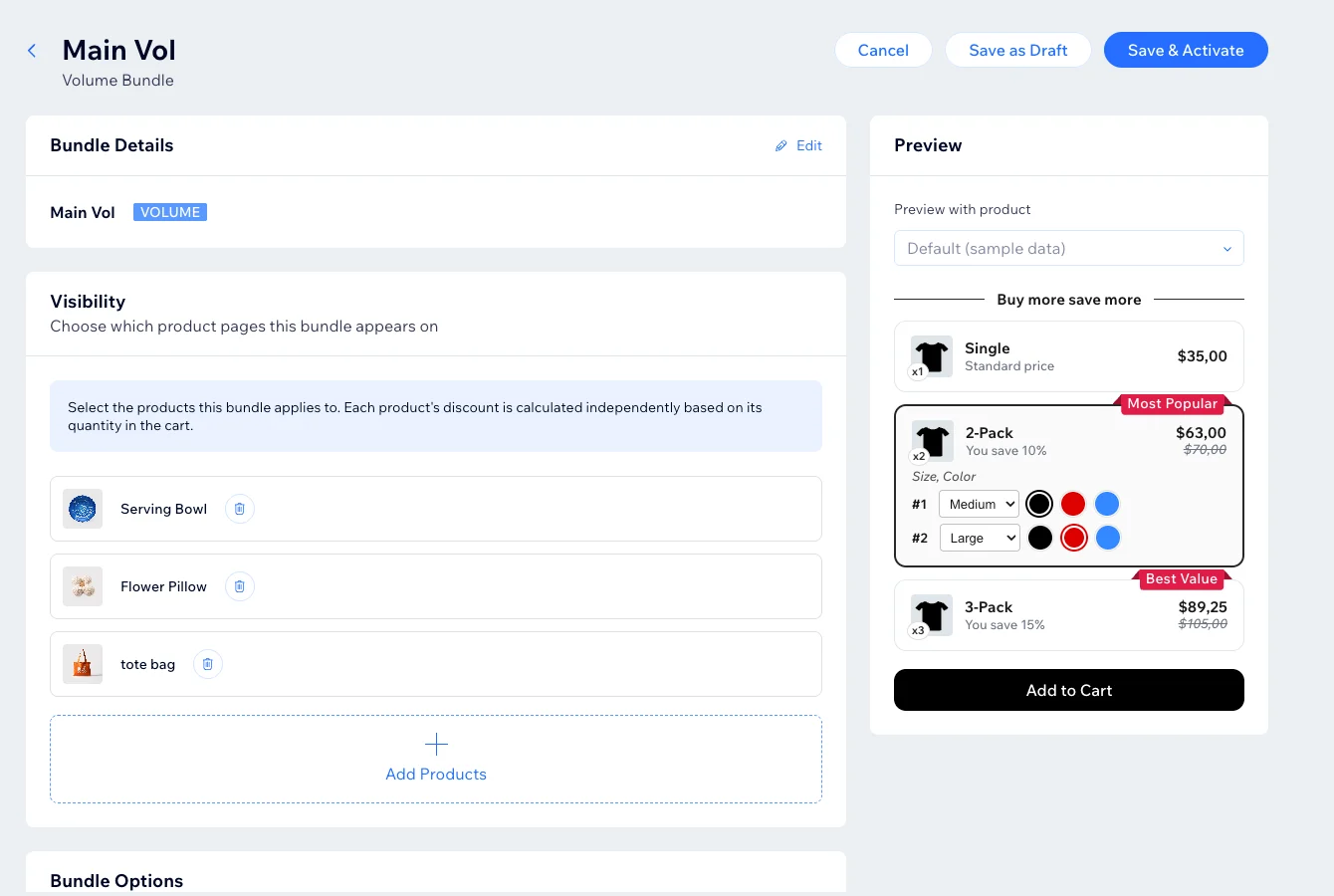
**Name your bundle** (for your reference only)
* Use descriptive names: "Summer BOGO Socks"
* Include product and type
* Add dates for seasonal offers
**Choose bundle type**
* Volume or BOGO
* Cannot change type after creation without losing settings
**Select products** that will show this bundle
* Add one or more products
* Widget appears on each product's page
* Volume/BOGO require specific products (not "all products")
**Volume:** Set quantity and discount per tier
* Start with 2-3 tiers
* Tier 1: Usually no discount (baseline)
* Tier 2: 10-15% off (make it "Most Popular")
* Tier 3+: 15-20% off (make it "Best Value")
**BOGO:** Set buy quantity and free quantity
* Buy 1 Get 1 Free = 50% savings
* Buy 2 Get 1 Free = 33% savings
* Buy 3 Get 2 Free = 40% savings
**Add badges** like "Most Popular" or "Best Value" to guide customers
**Include free gifts** (optional) like samples or accessories
**What customers see at checkout**
Templates available:
* Volume: "10% off 2 items", "Buy 2, Save 10%"
* BOGO: "Buy 2 Get 1 Free", "33% off when you buy 3"
Use placeholders: `{qty}`, `{discount}`, `{buy}`, `{getFree}`, `{save}`
Keep under 50 characters
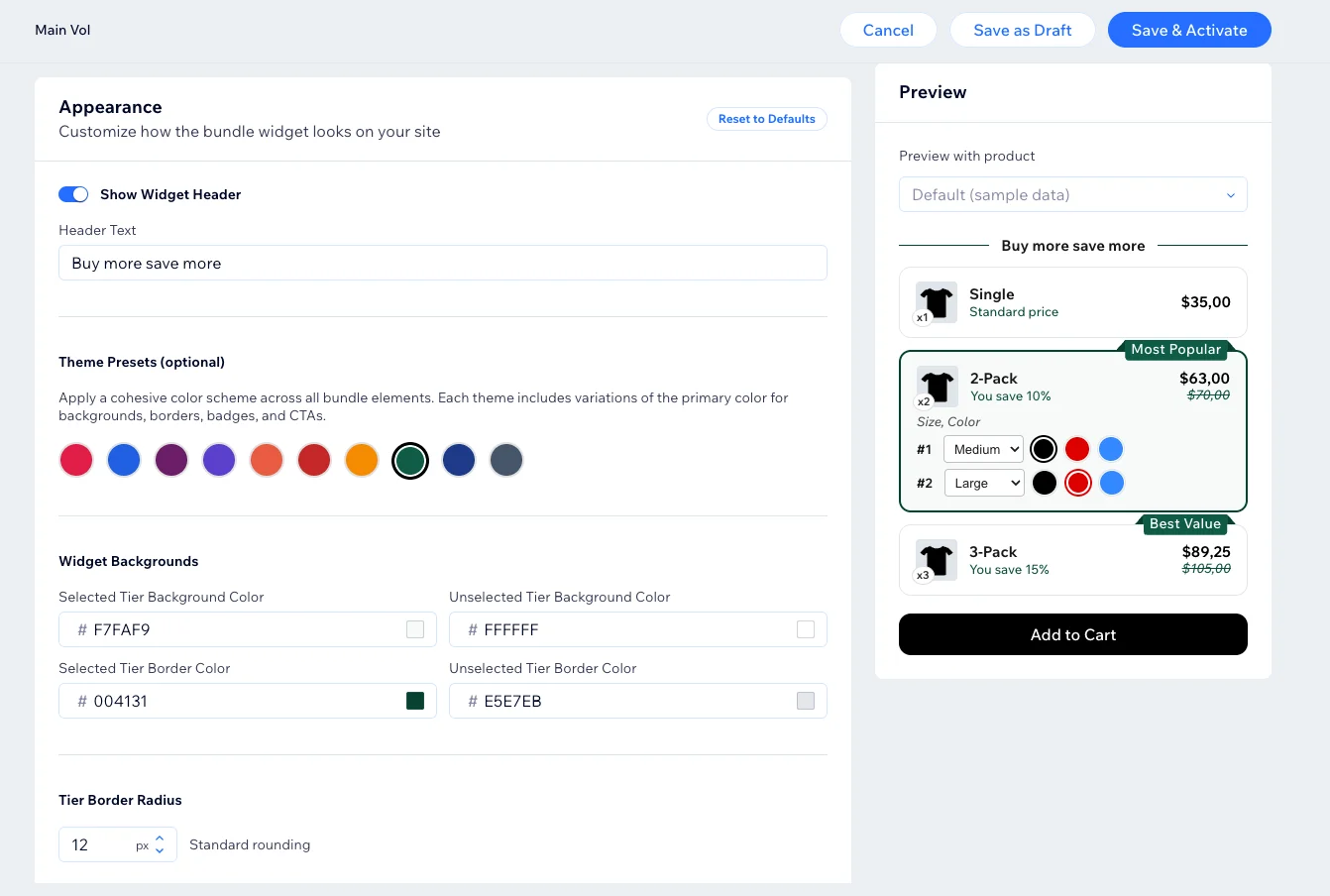
**Theme Presets:** 8 pre-designed color schemes
* Indigo, Emerald, Rose, Amber, Purple, Slate, Crimson, Teal
**Customize:**
* Background and border colors
* Text colors (primary, price, discount)
* Badge colors and styles
* CTA button text and colors
* Border radius (0-24px)
**Header toggle:** Show/hide "Buy more save more" text
**BOGO variant mode:**
* Per-item: Different size/color for each item
* Single: Same variant for all items
* Hidden: No variant selection (fastest)
**Live preview panel** updates as you configure
* Switch between products
* See exact customer view
* Test before activating
***
## Configuration Guide
**Name your bundle** (for your reference only)
* Use descriptive names: "Summer BOGO Socks"
* Include product and type
* Add dates for seasonal offers
**Choose bundle type**
* Volume or BOGO
* Cannot change type after creation without losing settings
**Select products** that will show this bundle
* Add one or more products
* Widget appears on each product's page
* Volume/BOGO require specific products (not "all products")
**Volume:** Set quantity and discount per tier
* Start with 2-3 tiers
* Tier 1: Usually no discount (baseline)
* Tier 2: 10-15% off (make it "Most Popular")
* Tier 3+: 15-20% off (make it "Best Value")
**BOGO:** Set buy quantity and free quantity
* Buy 1 Get 1 Free = 50% savings
* Buy 2 Get 1 Free = 33% savings
* Buy 3 Get 2 Free = 40% savings
**Add badges** like "Most Popular" or "Best Value" to guide customers
**Include free gifts** (optional) like samples or accessories
**What customers see at checkout**
Templates available:
* Volume: "10% off 2 items", "Buy 2, Save 10%"
* BOGO: "Buy 2 Get 1 Free", "33% off when you buy 3"
Use placeholders: `{qty}`, `{discount}`, `{buy}`, `{getFree}`, `{save}`
Keep under 50 characters
**Theme Presets:** 8 pre-designed color schemes
* Indigo, Emerald, Rose, Amber, Purple, Slate, Crimson, Teal
**Customize:**
* Background and border colors
* Text colors (primary, price, discount)
* Badge colors and styles
* CTA button text and colors
* Border radius (0-24px)
**Header toggle:** Show/hide "Buy more save more" text
**BOGO variant mode:**
* Per-item: Different size/color for each item
* Single: Same variant for all items
* Hidden: No variant selection (fastest)
**Live preview panel** updates as you configure
* Switch between products
* See exact customer view
* Test before activating
 ***
## Save Options
**Configuration saved but not live**
* No discount rules created
* Widget doesn't appear on site
* Perfect for testing
**Bundle goes live immediately**
* Creates Wix discount rules
* Widget appears after publishing site
* Discounts apply at checkout
***
## Quick Tips
Begin with 2-3 tiers. Test and adjust.
"Most Popular" guides decision-making
Widget should feel native to your store
Try 10%, 15%, 20% and see what works
***
## Next Steps
Edit and optimize offers
Track performance
***
## Save Options
**Configuration saved but not live**
* No discount rules created
* Widget doesn't appear on site
* Perfect for testing
**Bundle goes live immediately**
* Creates Wix discount rules
* Widget appears after publishing site
* Discounts apply at checkout
***
## Quick Tips
Begin with 2-3 tiers. Test and adjust.
"Most Popular" guides decision-making
Widget should feel native to your store
Try 10%, 15%, 20% and see what works
***
## Next Steps
Edit and optimize offers
Track performance