

Quick Setup
1
Create
Click Create Bundle in dashboard
2
Configure
Choose type, add products, set discounts
3
Style
Pick colors and customize appearance
4
Activate
Publish to make live on your site
Volume Bundles
Reward customers with increasing discounts for buying more. Perfect for consumables, supplements, clothing, and products customers buy repeatedly.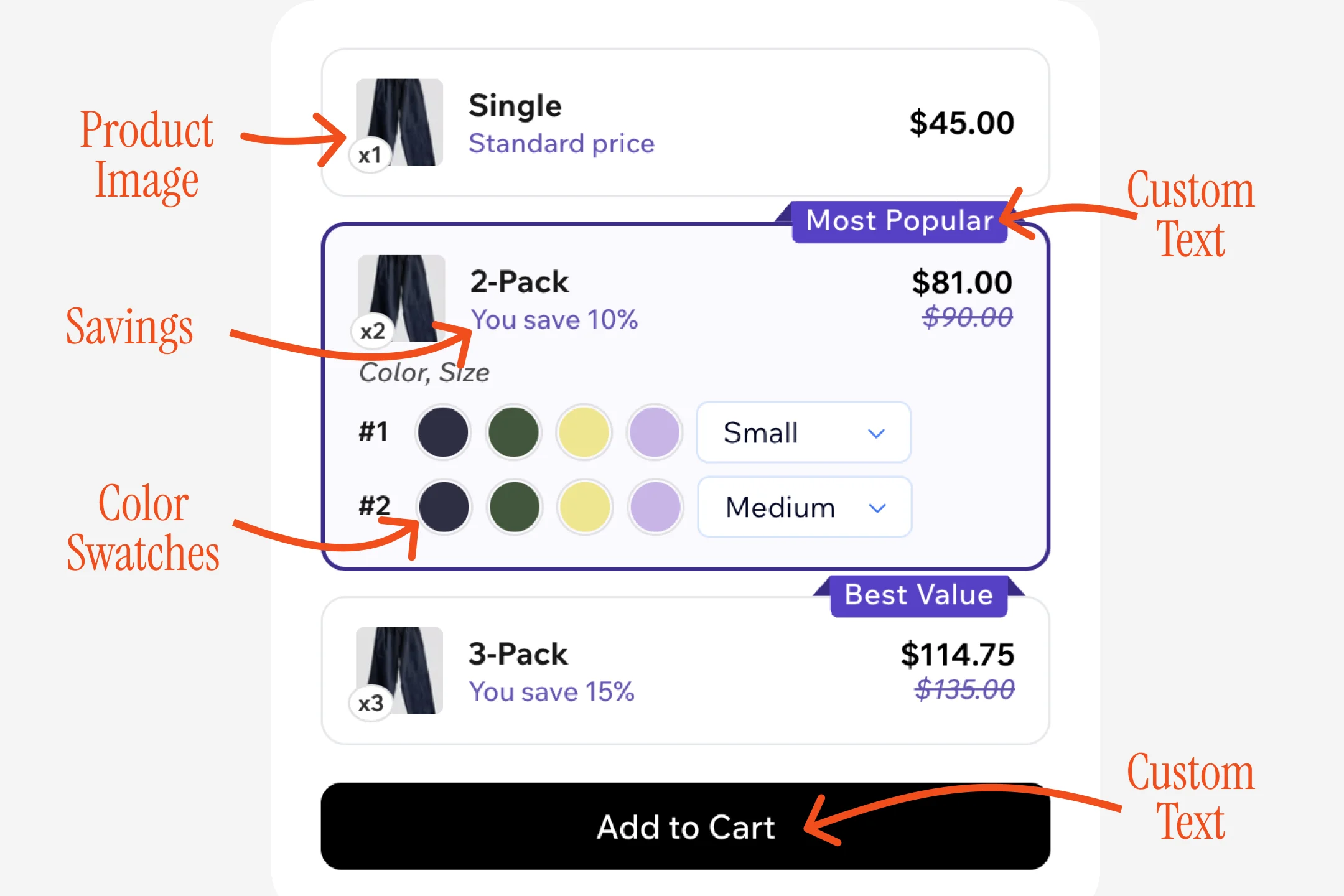
How Volume Bundles Work
Product Image — Shows what customers are buying (automatically pulled from your Wix store) Tier Options — Multiple quantity tiers with progressive savings:- Single: Regular price baseline
- 2-Pack: 10% discount (badge: “Most Popular”)
- 3-Pack: 15% discount (badge: “Best Value”)
- Bulk purchases (protein powder, supplements)
- Multi-packs (t-shirts, socks)
- Wholesale pricing
- Family/household quantities
BOGO Bundles
Offer free items when customers purchase a certain quantity. Perfect for promotions, clearance sales, new product launches, and gift-with-purchase offers.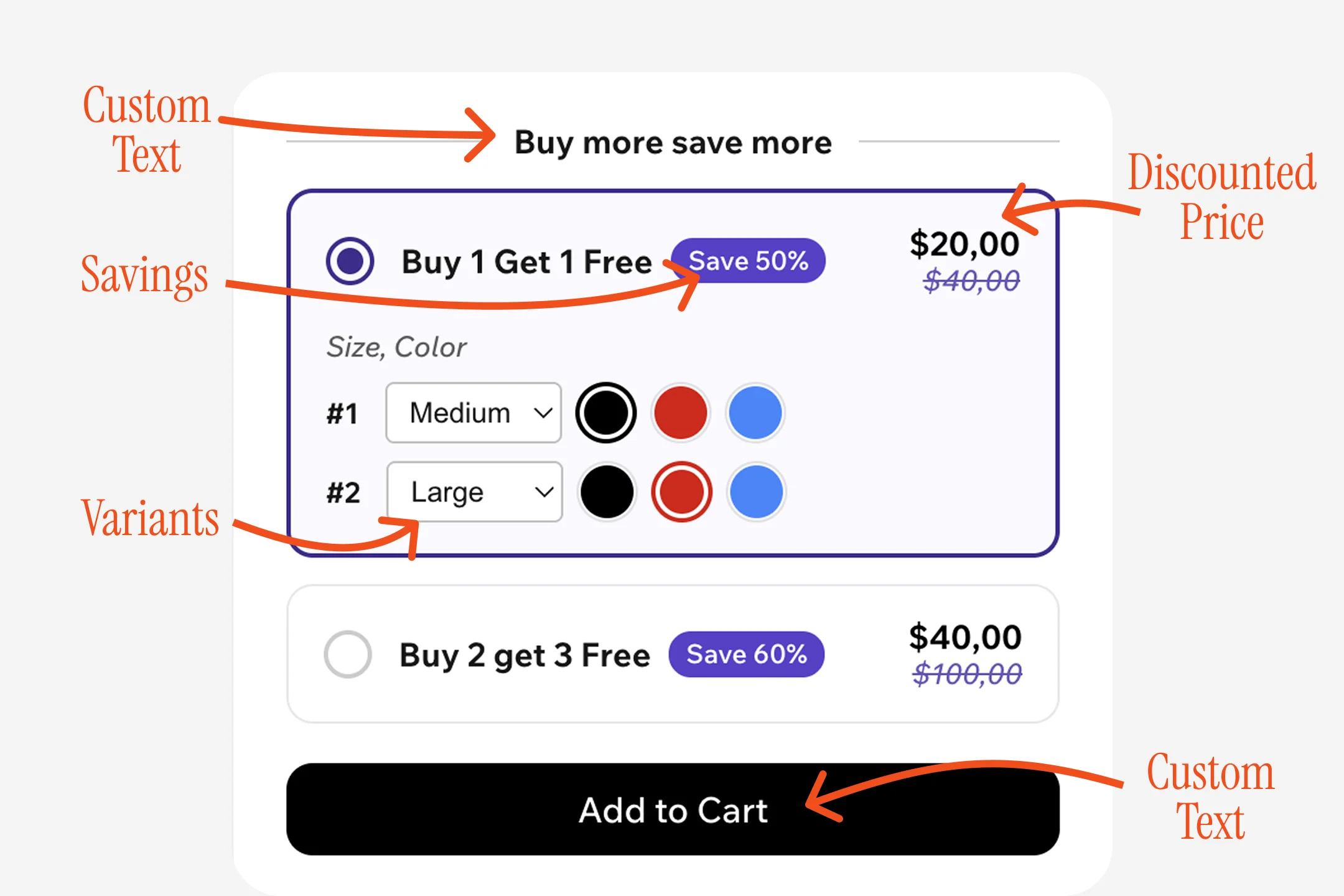
How BOGO Bundles Work
Custom Text Header — “Buy more save more” or any text that matches your brand Tier Selection — Radio buttons let customers choose their deal:- Buy 1 Get 1 Free: 50% savings
- Buy 2 Get 3 Free: 60% savings
- Per-item mode: Different variants for #1 and #2 (shown in image)
- Single mode: Same variant for all items
- Hidden mode: No selection needed
- Promotions (Buy 2 Get 1 Free)
- Inventory clearance
- New product launches
- Gift-with-purchase campaigns
- Holiday sales
Bundle Editor
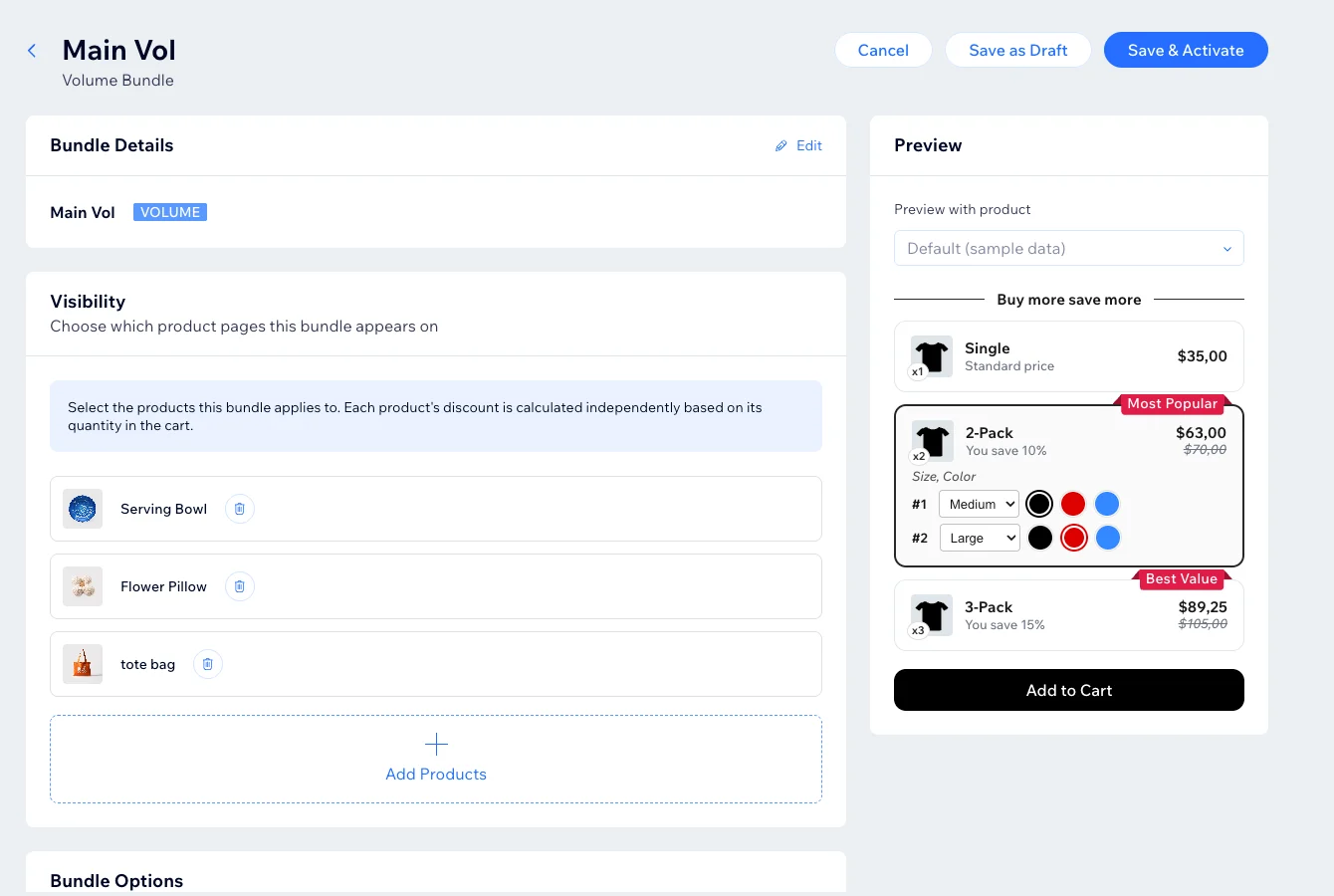
Configuration Guide
1. Bundle Details
1. Bundle Details
Name your bundle (for your reference only)
- Use descriptive names: “Summer BOGO Socks”
- Include product and type
- Add dates for seasonal offers
- Volume or BOGO
- Cannot change type after creation without losing settings
2. Product Visibility
2. Product Visibility
Select products that will show this bundle
- Add one or more products
- Widget appears on each product’s page
- Volume/BOGO require specific products (not “all products”)
3. Configure Tiers
3. Configure Tiers
Volume: Set quantity and discount per tier
- Start with 2-3 tiers
- Tier 1: Usually no discount (baseline)
- Tier 2: 10-15% off (make it “Most Popular”)
- Tier 3+: 15-20% off (make it “Best Value”)
- Buy 1 Get 1 Free = 50% savings
- Buy 2 Get 1 Free = 33% savings
- Buy 3 Get 2 Free = 40% savings
4. Discount Names
4. Discount Names
What customers see at checkoutTemplates available:
- Volume: “10% off 2 items”, “Buy 2, Save 10%”
- BOGO: “Buy 2 Get 1 Free”, “33% off when you buy 3”
{qty}, {discount}, {buy}, {getFree}, {save}Keep under 50 characters5. Widget Styling
5. Widget Styling
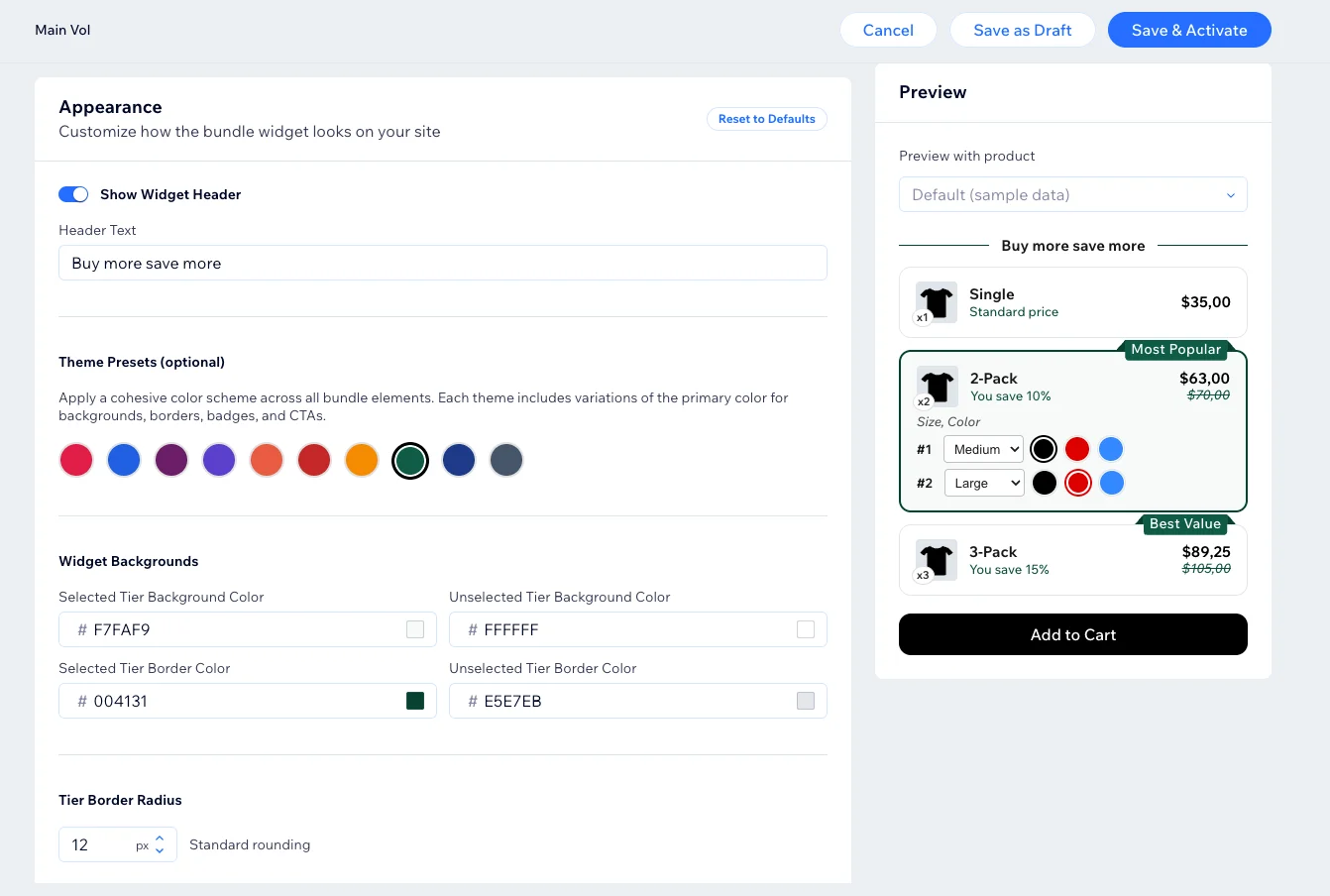
Theme Presets: 8 pre-designed color schemes
- Indigo, Emerald, Rose, Amber, Purple, Slate, Crimson, Teal
- Background and border colors
- Text colors (primary, price, discount)
- Badge colors and styles
- CTA button text and colors
- Border radius (0-24px)
- Per-item: Different size/color for each item
- Single: Same variant for all items
- Hidden: No variant selection (fastest)
6. Preview
6. Preview
Live preview panel updates as you configure
- Switch between products
- See exact customer view
- Test before activating
Save Options
- Save as Draft
- Save & Activate
Configuration saved but not live
- No discount rules created
- Widget doesn’t appear on site
- Perfect for testing
Quick Tips
Start Simple
Begin with 2-3 tiers. Test and adjust.
Use Badges
“Most Popular” guides decision-making
Match Colors
Widget should feel native to your store
Test Discounts
Try 10%, 15%, 20% and see what works
Next Steps
Manage Bundles
Edit and optimize offers
View Analytics
Track performance